

Coupon Management
The Coupons page is where you set up discounts for your store. A coupon defines the offer — how much off, which products, when it ends and how many times it can be claimed — and comes with one promotion code that customers enter at checkout. To hand the same offer out per channel or audience, add more promotion codes to the coupon, each with its own conditions. For how discounts behave at checkout and on subscriptions, see Discounts & Promotions. Coupons belong to one environment: the page follows the Test Mode switch, and a coupon created in test mode does not work in live mode. Use Copy to live once it is ready.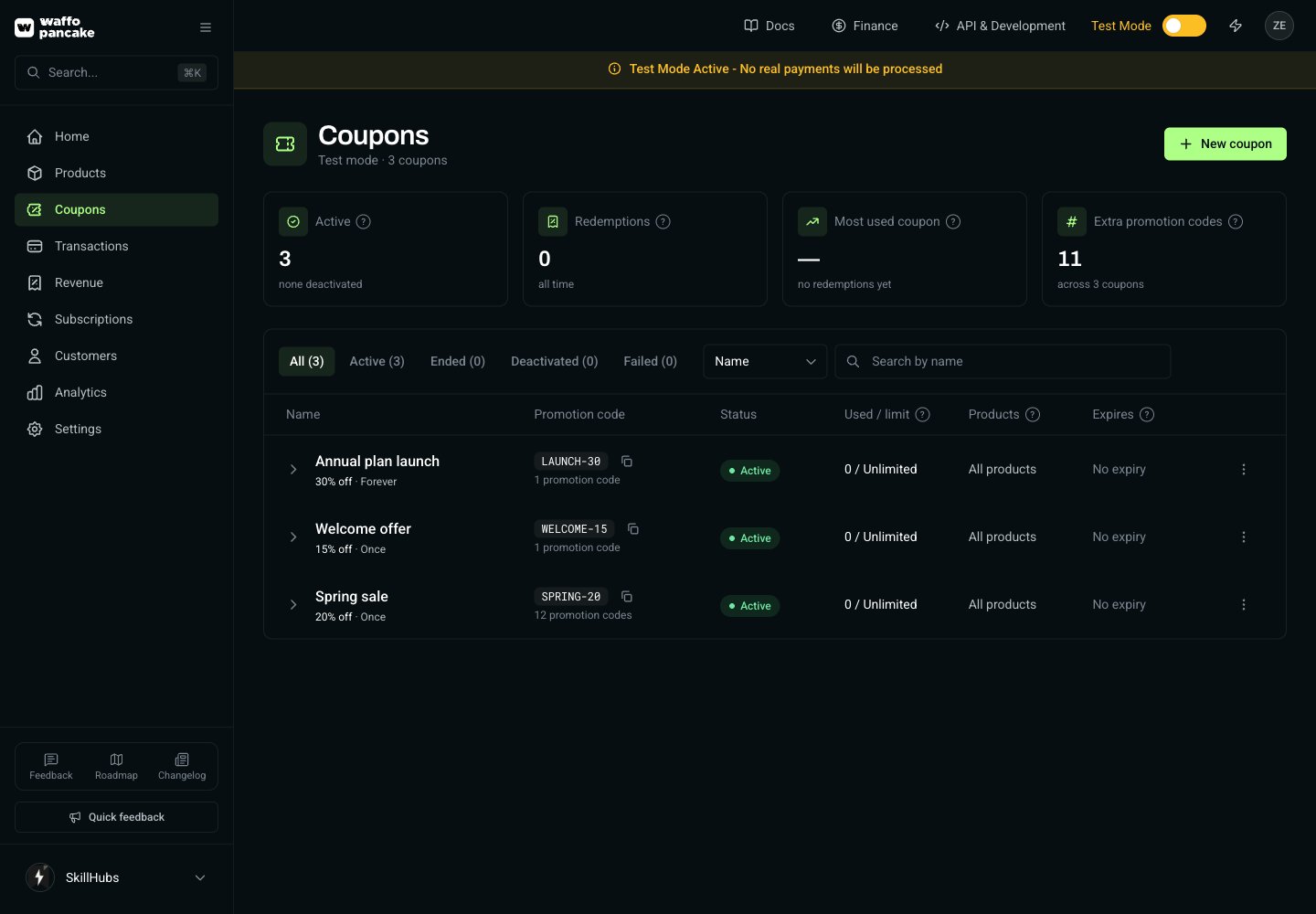
Coupon List
The overview cards show active coupons, redemptions across all coupons, the most used coupon and how many extra promotion codes you have added. Below them, coupons are listed with:
Filter the list with the All / Active / Ended / Deactivated / Failed tabs, or search by name or by promotion code — a search by code also matches the extra codes of a coupon.
Coupon Status
Creating a Coupon
1
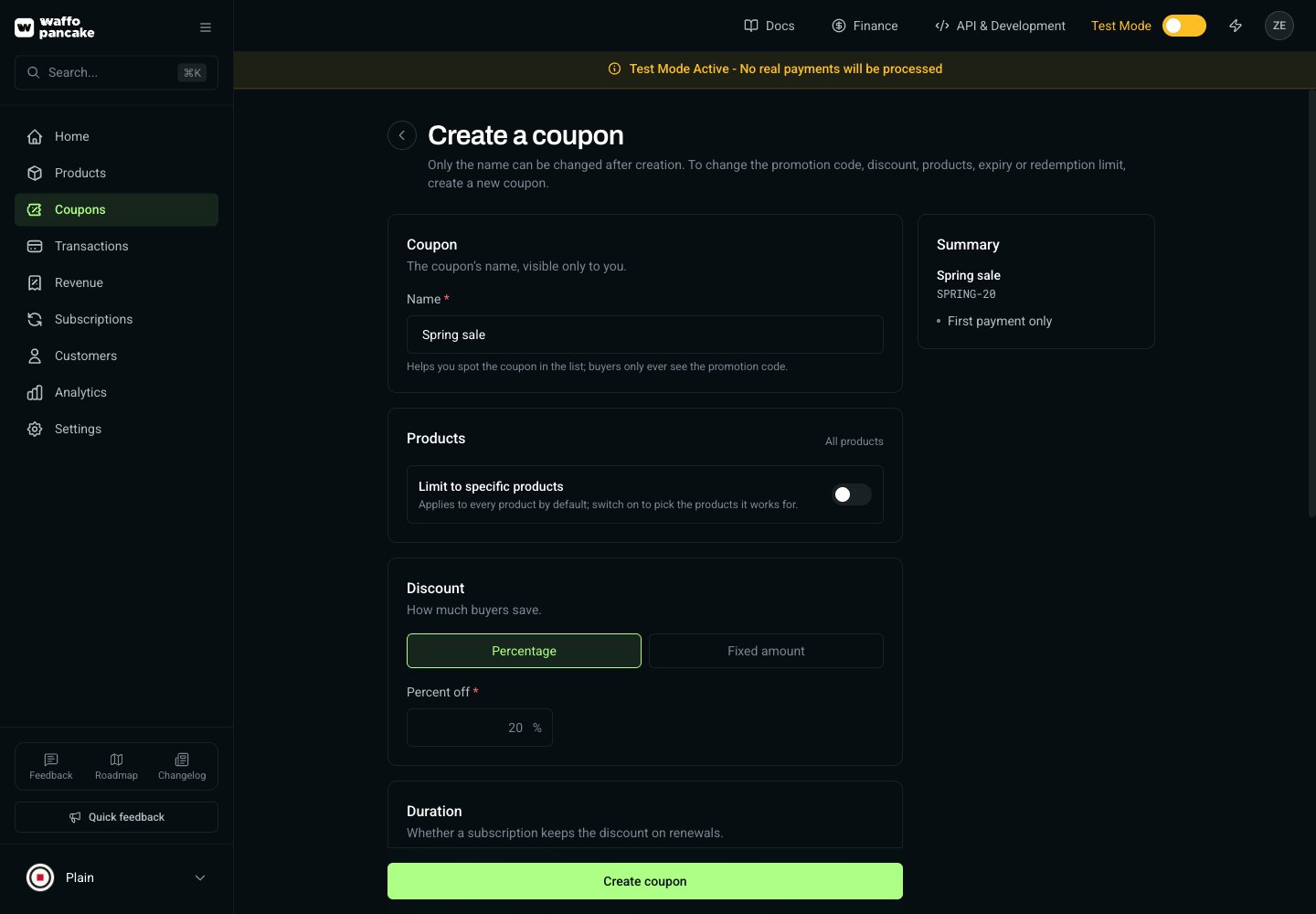
Click 'New coupon'
Find the button in the top right of the Coupons page.
2
Name the coupon
The name helps you spot the coupon in the list; customers only ever see the promotion code.
3
Choose the products
The coupon applies to every product by default. Switch on Limit to specific products to pick the products it works for.
4
Set the discount
A percentage off, or a fixed amount off with one amount for each currency the selected products are priced in.
5
Set the duration
For subscriptions only: discount the first payment, the first N billing cycles, or every payment.
6
Set the promotion code and limits
A code is generated for you; keep it or type your own. Optionally add an expiry date, a total redemption limit, and extra promotion codes.
7
Create
The summary on the right shows what the coupon does. Click Create coupon.
Coupon Fields
A paid trial period uses the discount: a once coupon is used up by the trial, and a multi-cycle coupon counts the trial as its first cycle. Free trials don’t use it.
Adding Promotion Codes While Creating
Switch on Add more promotion codes to hand out extra codes for the same coupon right away — up to 20 single codes, each with its own conditions, or a batch generated with a prefix. Every extra code claims the same coupon with the same discount; its uses and expiry cannot exceed the coupon’s. You can also add codes later on the coupon page.Coupon Details
Click a coupon row to open its details. The panel shows the discount, the default promotion code, the duration, redemptions against the limit, the expiry, the products it applies to, and all of its promotion codes.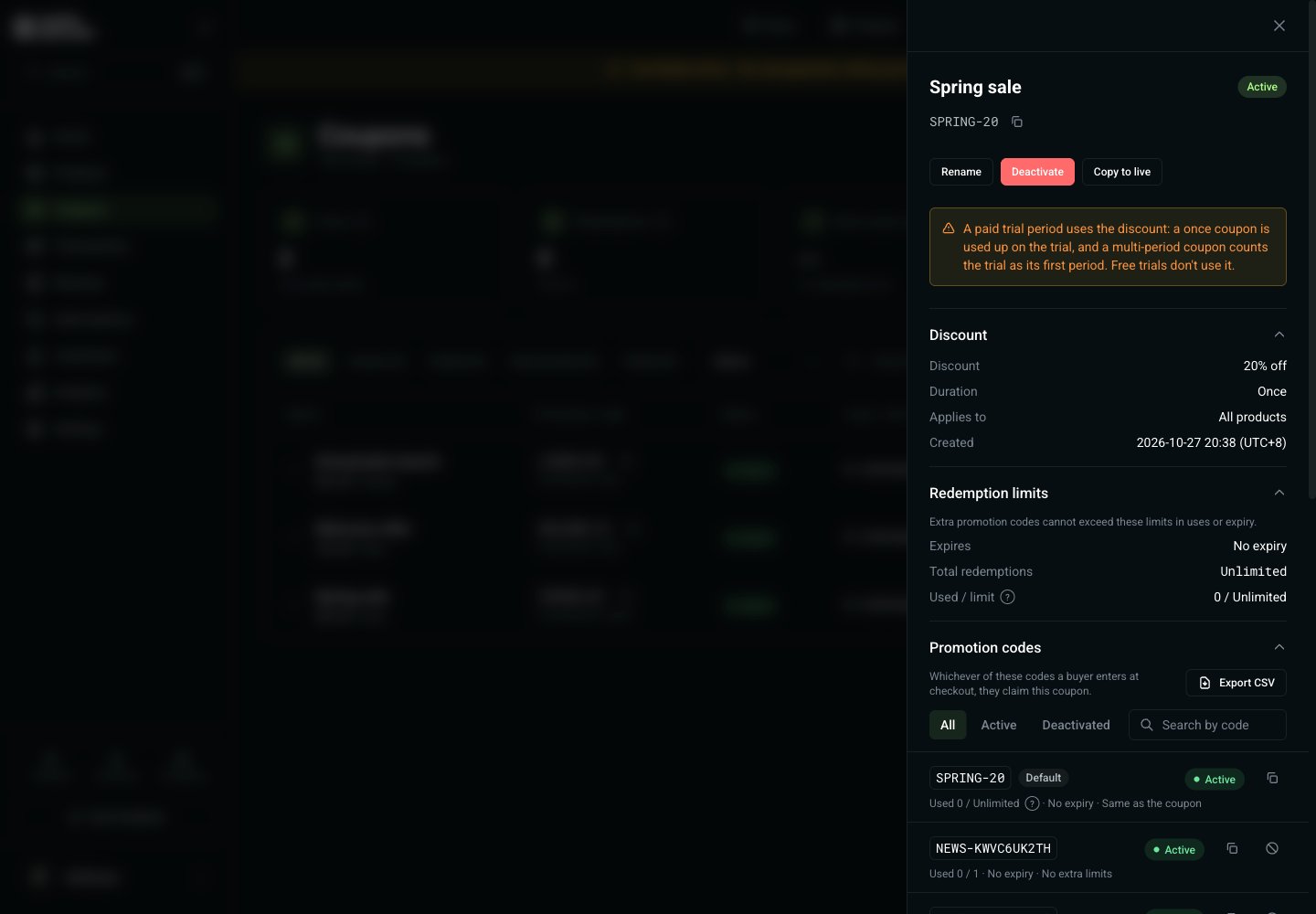
- Rename the coupon
- Add promotion code — a single code, or a batch (see below)
- Export CSV of the promotion codes
- Deactivate the coupon or one of its promotion codes
- Copy to live a test-mode coupon
Promotion Codes
Whichever of a coupon’s codes a customer enters at checkout, they claim that coupon. A promotion code only adds conditions of its own:
Filter the codes by All / Active / Deactivated or search by code. A code can be deactivated on its own; this is permanent, and the code can then be reused by a new promotion code.
A promotion code cannot be added to a coupon that is deactivated, expired, or failed to create.
Generating Codes in Bulk
In Add promotion code, switch to Generate in bulk to create up to 500 codes at once, with an optional prefix (up to 12 characters) and the same conditions for every code — for example single-use codes for a newsletter. When they are ready you can copy them all or download them as CSV; the CSV can be exported again from the coupon details at any time.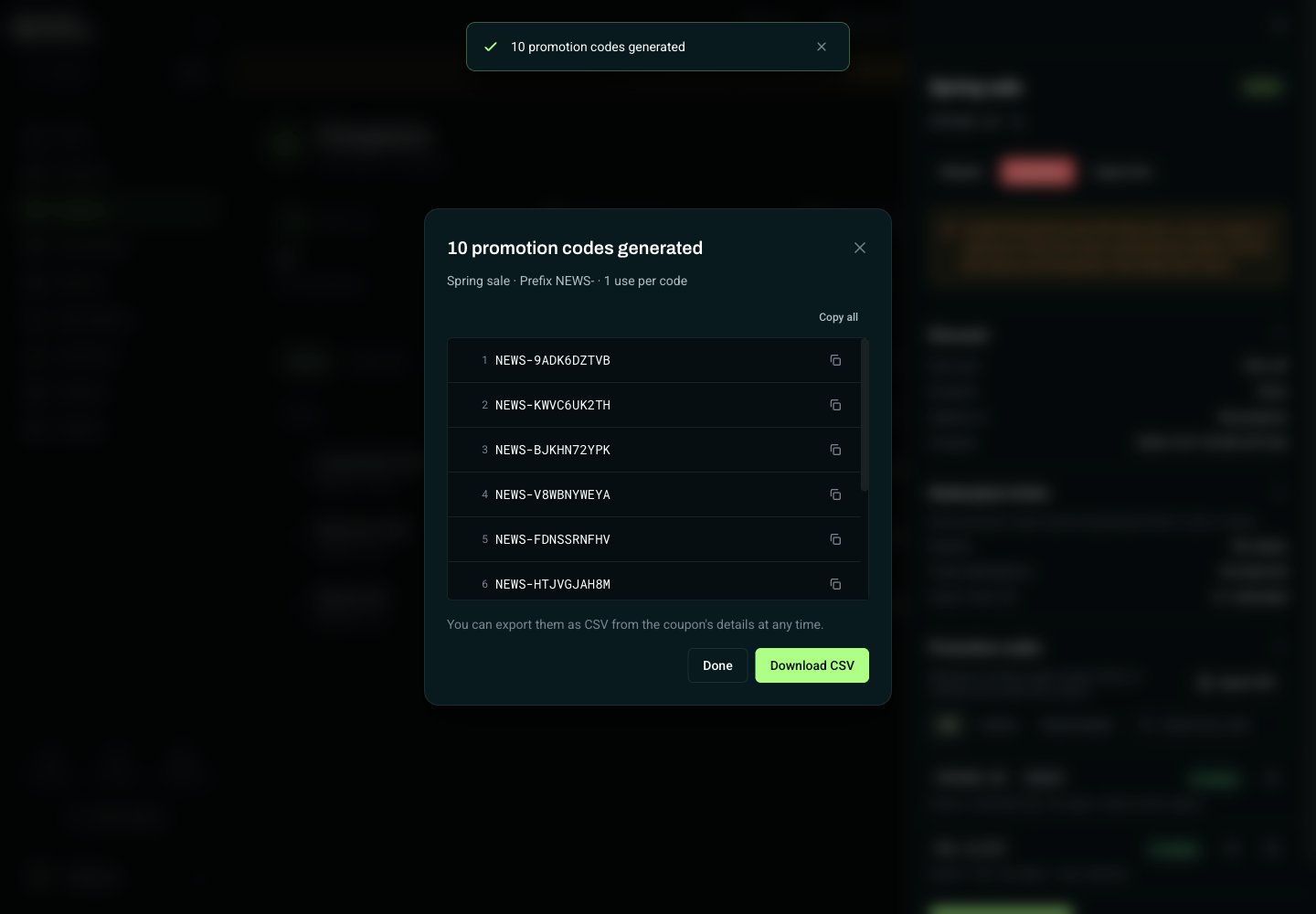
Deactivating a Coupon
Deactivating is permanent: the coupon and all of its promotion codes stop working for new orders, and their codes are released for reuse. Discounts already on subscriptions continue until the subscription’s next plan change — see Discounts & Promotions.Copying a Coupon to Live
A coupon created in test mode can be copied to the live environment from its details once your store has passed review. The copy is a new coupon with the same settings and its redemptions start at 0. Optionally copy its active, unexpired promotion codes along with it, with the same conditions.- Products not yet published to live are left out of the copy; if none of the coupon’s products are published, publish them first.
- If the coupon’s expiry has already passed, the live coupon gets no expiry, and its expired promotion codes are not copied.
- A code already in use on live stops the copy — deactivate it there first, or copy without promotion codes.
Next Steps
Discounts & Promotions
How codes are checked at checkout and how subscriptions are discounted
Coupon Endpoints
Create coupons and promotion codes from your server